Cash drawers are used at the register to organize and store cash bills, coins, checks, and receipts. You can use a Windows computer, a Mac computer, or an iPad to set up any model of cash drawer with Retail POS.
The cash drawer is connected to a supported receipt printer via an RJ12 or CD-101A connector cable and opens automatically when a transaction is processed and a receipt is printed.
What you’ll need
Cash drawer
Supported receipt printer
Connector cable (RJ12 or CD-101A)
*RJ12 or CD-101A connector cable type only. Serial cables and other cable types are not supported.
To identify the difference between a cash drawer cable and an Ethernet cable, check the number of slots on the connector at the end of the cable. A cash drawer cable (RJ12 or CD-101A) has a 6-slot connector, and an Ethernet cable has an 8-slot connector.
Setting up your cash drawer
- The RJ12 or CD-101A connector cable should have two differently sized ends, one larger and one smaller. Plug the smaller end of the connector cable into the port on the back of the receipt printer. Make sure the cable clicks securely into the port.
-
Plug the larger end of the RJ12 or CD-101A connector cable into the port under the cash drawer. Make sure the cable clicks securely into the port.
-
Turn the key on the cash drawer to the unlock position.
- Configure your print settings:
-
To configure your print settings on Windows:
- Navigate to Settings > Bluetooth & devices.
- Click Printers & scanners.
- Select your receipt printer from the list.
- Click Printer Properties.
- In the Printer Properties window, click the Device Properties tab.
-
Click the Peripheral Unit Type dropdown and select Cash Drawer.
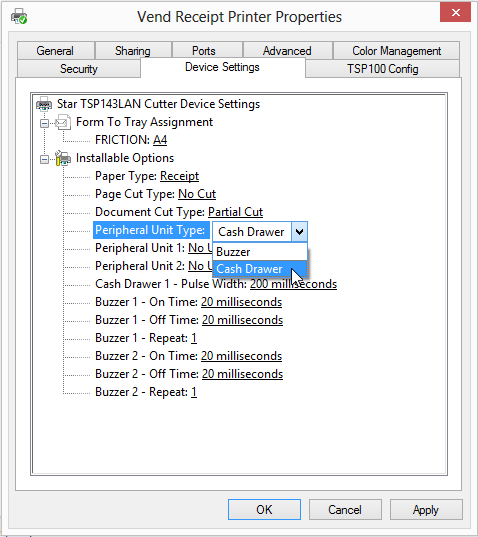
- Beside the Peripheral Unit 1 and Peripheral Unit 2 options, click the No Use dropdown and select Document Bottom. Selecting Document Top will trigger the cash drawer to open before the receipt prints.
- Click Apply.
-
To configure your print settings on Mac:
- Navigate to
http://localhost:631/printers/to access CUPS, a network printing service used by Mac computers. If you get a Web Interface is Disabled error, you’ll first need to enable CUPS on your Mac. - Log in using the computer’s username and password.
-
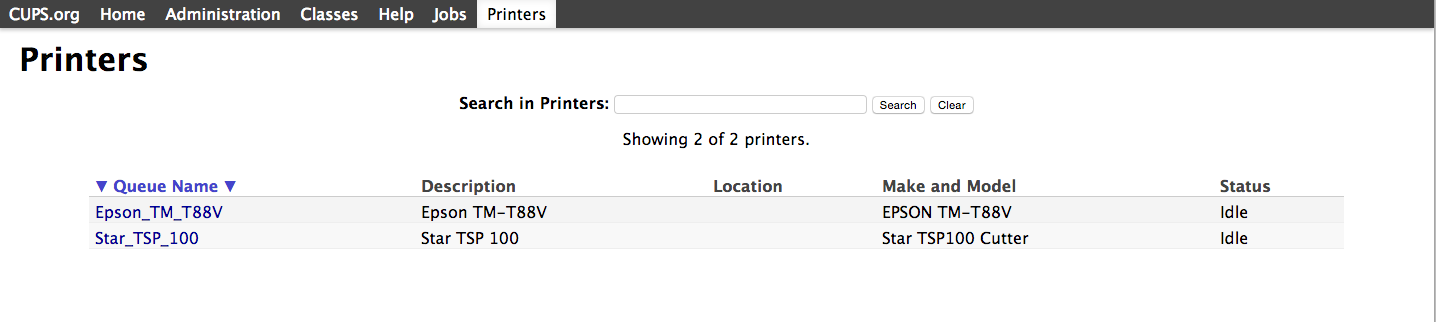
Click the Printers tab, then click the name of your printer.
-
Click the dropdown and select Set Default Options.

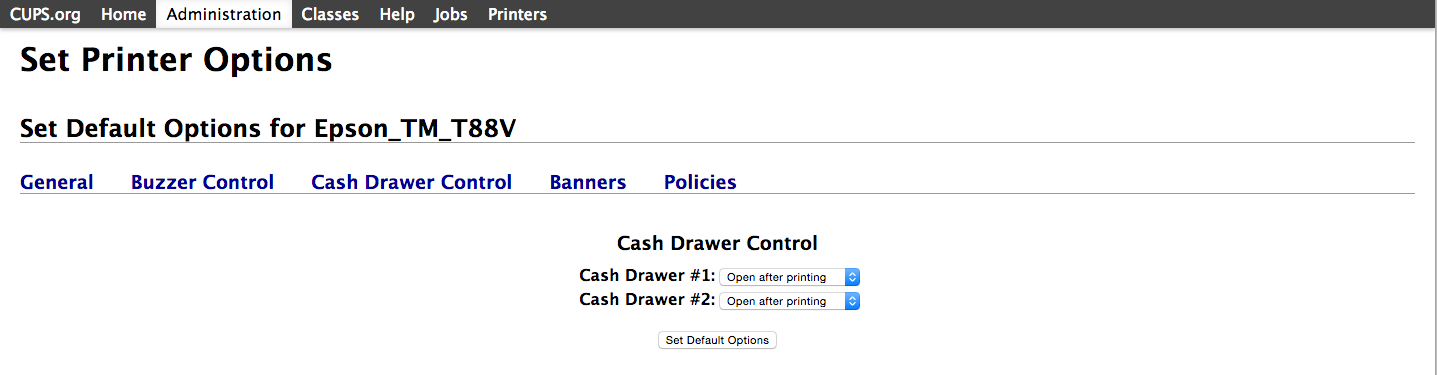
- Click the Administration tab > Cash Drawer Control.
-
Click the Cash Drawer Control dropdown(s) and select Open after printing (Epson) or Open Drawers 1 and 2 (Star).
- Click Set Default Options.
- Navigate to
-
To configure your print settings on iPad:
- In the Retail (X) app, click Settings > Hardware.
- Select your receipt printer.
-
On the Edit printer page, toggle on Enable cash drawer and Open after cash sale.
- Click Save.
-
- Navigate to the Sell screen > Sales history to perform a test print.
Opening your cash drawer
The cash drawer must be connected to a receipt printer and enabled in your Retail (X) app settings to open automatically. Cash drawers open when:
- A sale is completed and a receipt is printed.
- A keyboard shortcut is used from the Sell screen (CMD + E on Mac or Ctrl + E on Windows) to trigger a test print.
- The drawer is manually unlocked using its key.
There may be circumstances outside of a sale that require you to open the cash drawer. For example, the cashier may have forgotten to put cash or checks into the drawer before closing it, or they may have given a customer incorrect change.
A Manager or Admin user can open the cash drawer when required. It isn’t possible to check how many times a cash drawer has been manually opened.
To open the cash drawer outside of a sale:
- Switch to a Manager or Admin user.
- Navigate to the Sell screen.
-
On your keyboard, press CMD + E (Mac) or Ctrl + E (Windows) to open the Print dialog window. Make sure your receipt printer is selected, then click Print. The cash drawer will open when the test print is performed.
If you’re using an iPad, click More actions in the top right corner of the screen > Open cash drawer.
Troubleshooting your cash drawer
-
“Open cash drawer” option not appearing on iPad
If the More actions dropdown in the top right corner of the Retail (X) app isn’t showing the Open cash drawer option, check your configuration:
- User permissions: Cashiers cannot open the cash drawer outside of a sale. You’ll need to switch to a Manager or Admin user and follow the steps in the previous section to open the cash drawer.
- Printer connected: Check that your receipt printer is connected under Settings > Hardware.
- Cash drawer enabled: Check that your cash drawer is enabled under Settings > Hardware.
-
Cash drawer not opening or making clicking noises
To automatically trigger your cash drawer to open, you must print a receipt from a supported receipt printer connected to Retail POS.
Certain cash drawer actions can only be performed by a manager or Admin user. Switch to one of these user types and try opening the cash drawer by using a keyboard shortcut from the Sell screen (CMD + E on Mac or Ctrl + E on Windows) to trigger a test print. If you’re using an iPad, click More actions in the top right corner of the screen > Open cash drawer.
You can also manually open the cash drawer without printing a receipt by inserting the drawer’s key and turning it to the unlock position.
To troubleshoot a cash drawer not opening automatically or making clicking noises:
- Make sure the drawer is completely closed and not jammed or locked. If it appears to be jammed, use a pen or screwdriver to press or slide the manual eject latch on the bottom of the drawer to release.
- Check for loose connections between the cash drawer and printer ports, as well as physical damage to the cable. If the cable isn’t fitting tightly, try swapping the ends in case they’re plugged into the wrong device. The cable must be an RJ12 or CD-101A cable.
- Restart all connected devices.
- If you’re using an iPad, navigate to Settings > Hardware in your Retail (X) app and verify that the cash drawer is set to open when receipts are printed.
-
Cash drawer opening after credit card sales
Depending on your configuration, the cash drawer will open for all sales (Mac or Windows) or only for cash sales (iPad).
If your credit card option is set up as a cash payment type, the cash drawer will open when Credit card is selected.