Setting up PayPal Point of Sale
PayPal Point of Sale (POS), formerly Zettle, are a payment company that aims to make setting up and processing payments fast, secure, and simple. PayPal POS payments are available in:
- Brazil
- Denmark
- Finland
- Mexico
- Netherlands
- Spain
- UK
When you sign up for PayPal POS, you'll get a secure card reader so that you can process credit and debit card payments on the Retail POS app.
You'll need to get a card reader to use with each of your iPads.
Signing up for a PayPal POS account also gives you access to their free app, which provides you with reporting on your sales.
Setting up the payment type
- Connect the PayPal Card Reader to your iPad via Bluetooth. You can find instructions on the PayPal POS help site here.
- On your Retail POS on iPad app, tap the menu button to open the side menu bar.
- Choose Dashboard. Your Retail POS dashboard will open.
- Select Setup.
- Choose Payment Types.
- Tap Add Payment Type.
-
Choose PayPal POS.
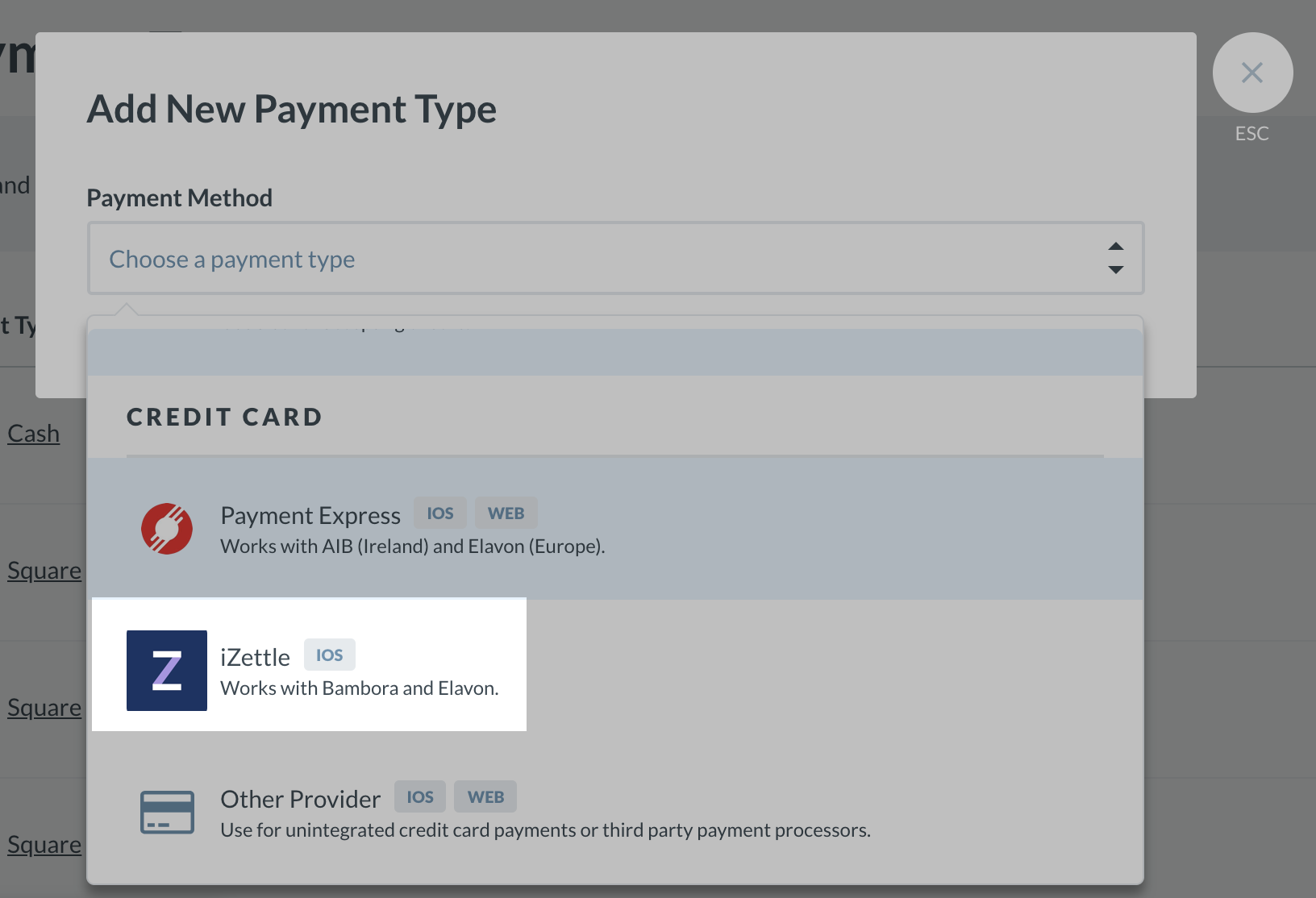
-
If you do not have a PayPal POS account, select Find out more. Otherwise, select Begin Setup.
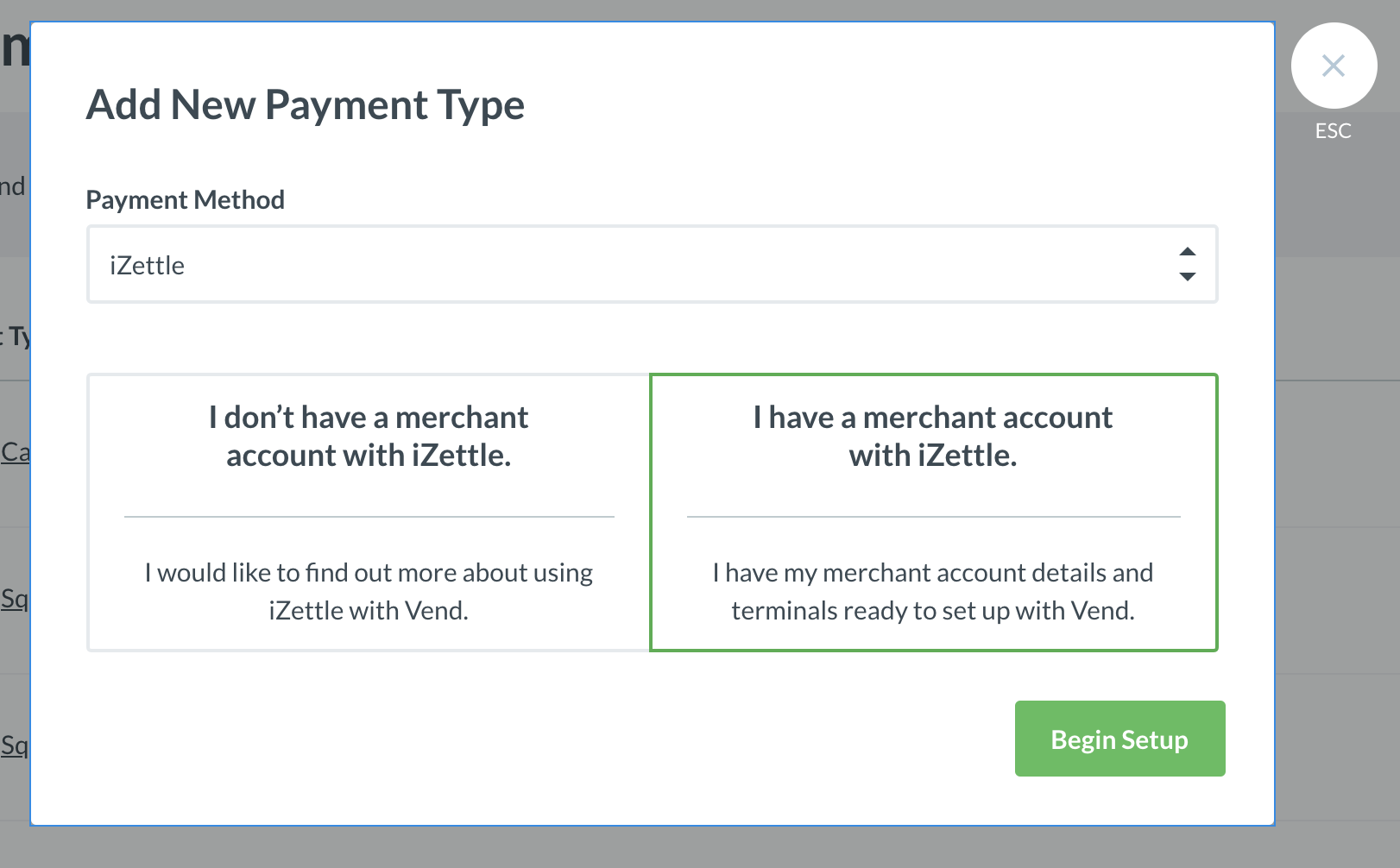
-
Give your PayPal POS payment type a name.
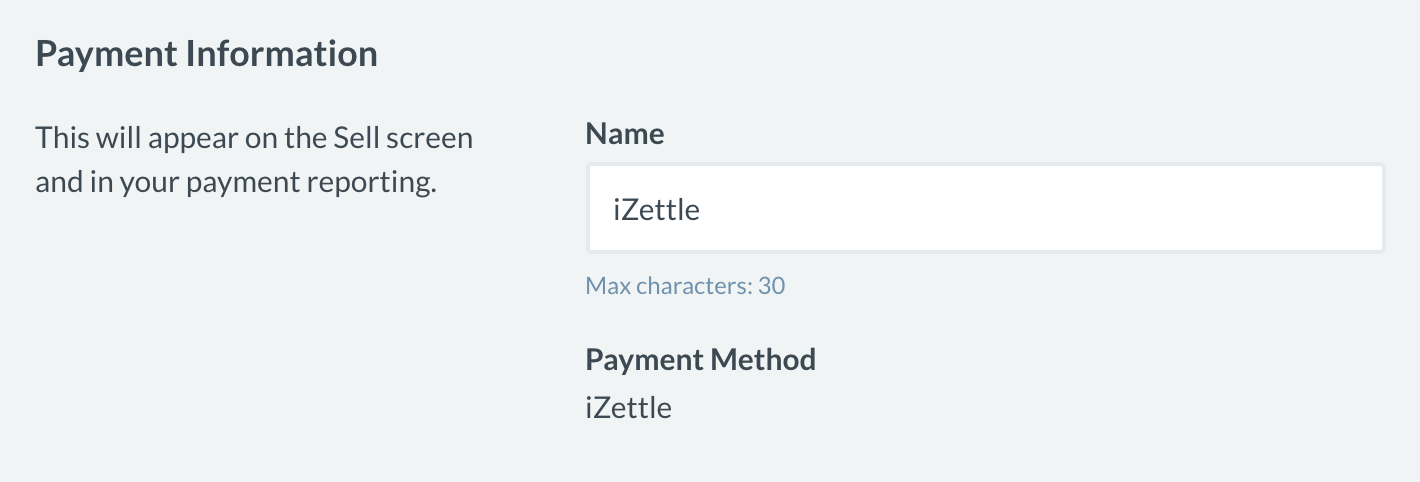
-
Follow the steps in the Pair Card Readers section.
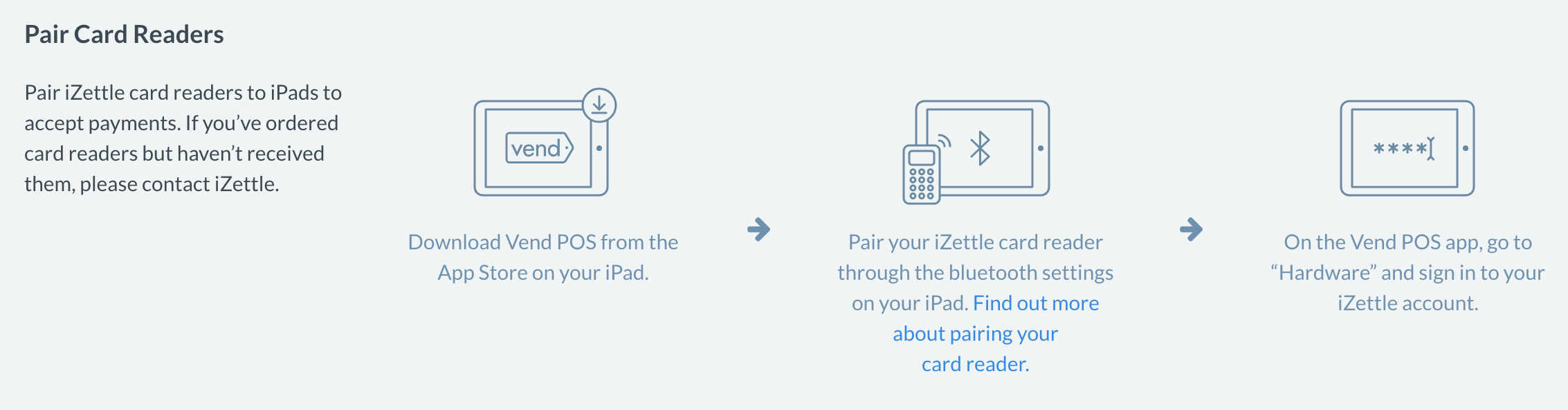
- Once you are done, click Save Payment Type to create your PayPal POS payment type.
You're now ready to start taking payments.
Taking a payment using PayPal POS payments
To accept payment via PayPal POS payments:
- Make sure your PayPal POS Card Reader is connected and powered on.
- Hit Pay when making your sale on Retail POS on iPad.
- On the Payment screen, confirm the amount you want to pay. You can process a full payment or a partial payment.
- Click the PayPal POS button. You'll be prompted to insert the customer's card.
- Hand the card reader to the customer so that they can enter their PIN.
-
Once the payment is accepted, a receipt will be printed, and the sale will be closed.
For partial payments, you'll be returned to the Payment screen to choose additional payment methods until the balance is paid in full.
The minimum payment amount for PayPal POS payments is £1.00
Issuing a refund/return using PayPal POS payments
Payments taken via PayPal POS can be refunded following the normal Retail POS refund process. Select PayPal POS as the payment type when processing the return.
FAQs
- If the iPad can't connect to the card reader, check that the reader is still connected via Bluetooth to the iPad. If it's still connected, power the device off and back on.
- If your card reader doesn't turn on, the battery might be dead. Use the Micro USB charging cable to recharge it. You can still accept payments while charging.
- The PayPal POS card reader does not have built-in receipt printing. If you want to provide your customer with a receipt, you'll need to either use email receipts or a supported receipt printer.
What's next?
Setting up integrated payment types on Retail POS (X-Series)
Use integrated third-party payment types to accept payments from customers.