If you are located in the US, the UK, or Australia, you can set up PayPal Here to accept chip cards, contactless/NFC-enabled mobile phone payments, and traditional magnetic stripe credit or debit cards in store.
PayPal Here only integrates with Retail POS on iPad and is not available on a computer.
Retail POS app for iPad supports the following PayPal readers:
- Chip and Swipe Reader
- Chip and Tap Reader
- Chip Card Reader
- Mobile Card Reader
- PayPal’s previous model, the Miura Reader
Card processing is subject to PayPal Here approval.
Creating your payment type and connecting Retail POS to your PayPal Here account
- Log in to your Retail POS store.
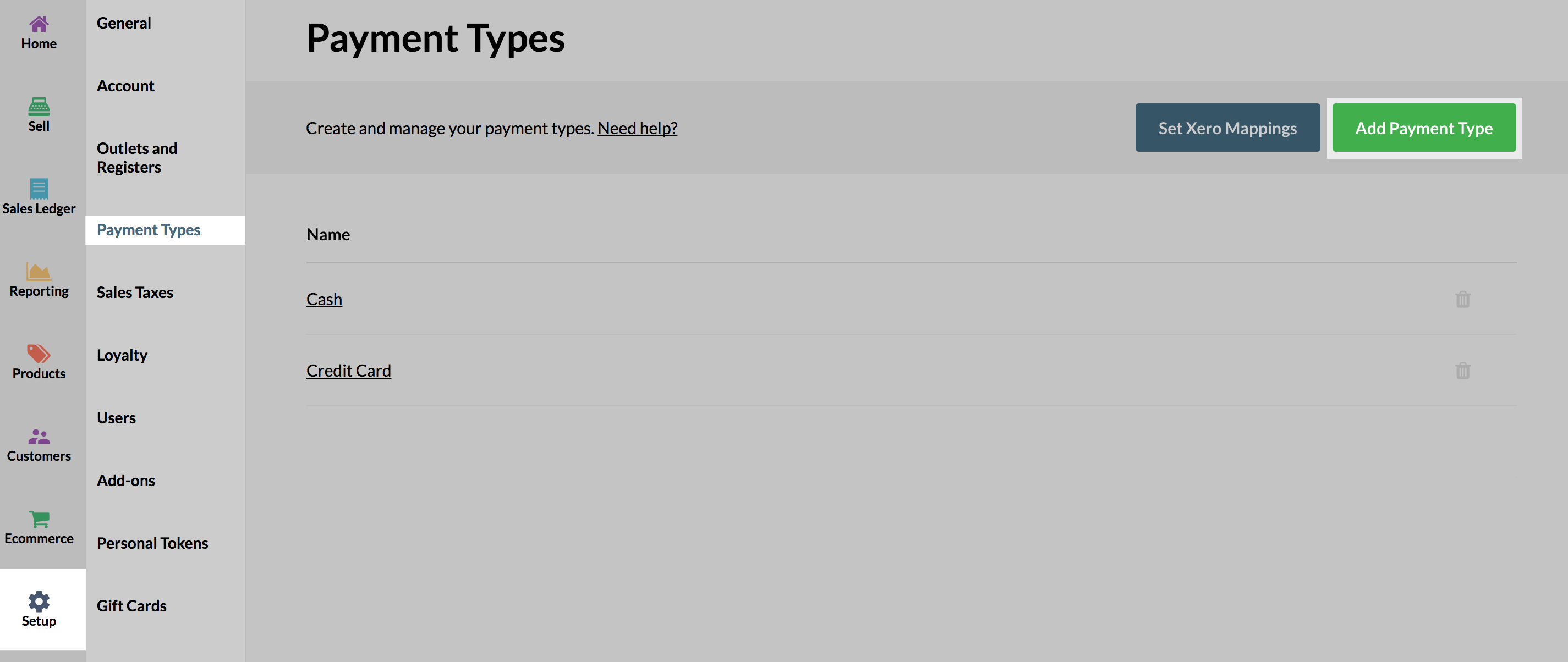
- Navigate to Dashboard > Setup.
- Select Payment Types.
-
Click the Add Payment Type button.
-
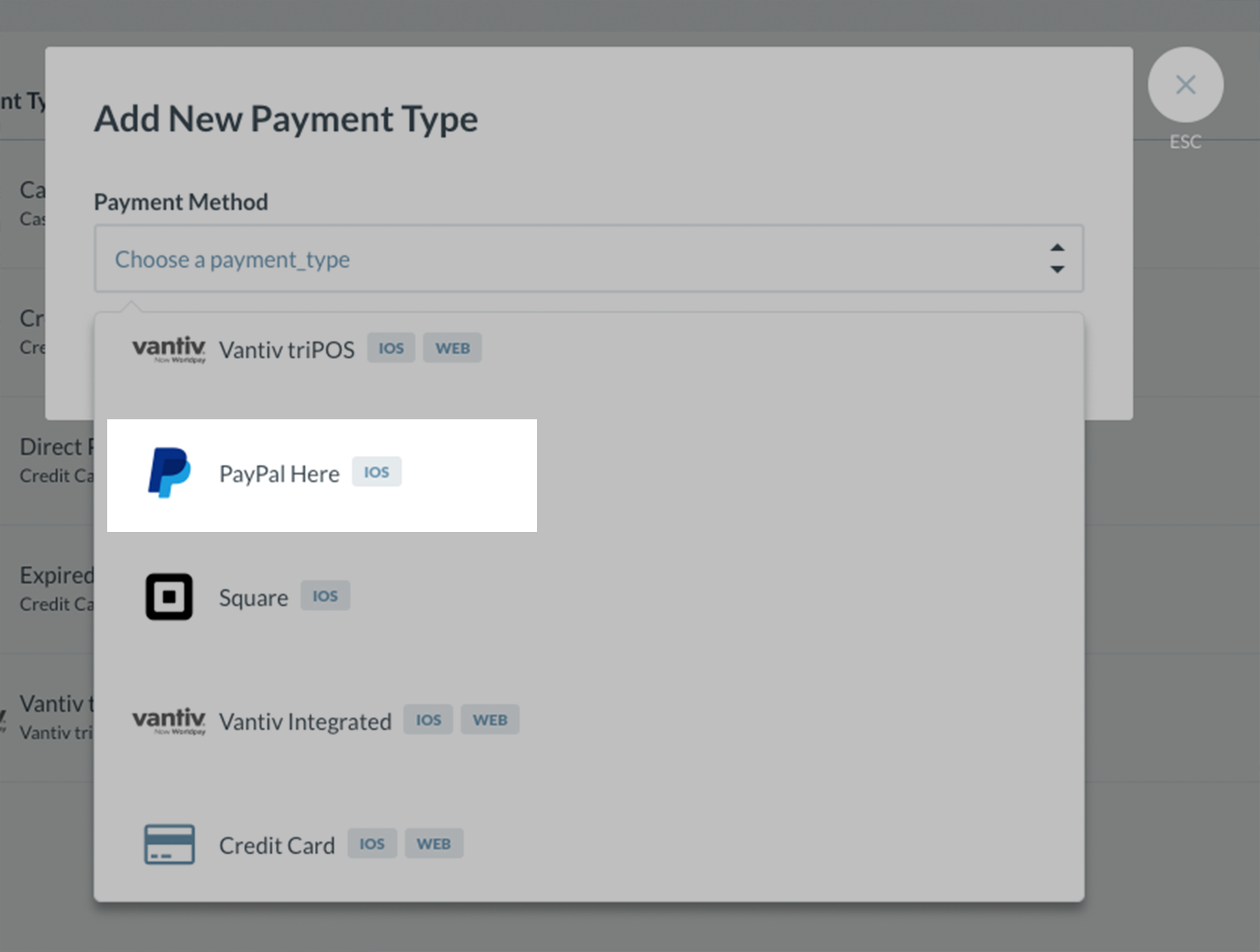
Choose PayPal Here from the dropdown list.
-
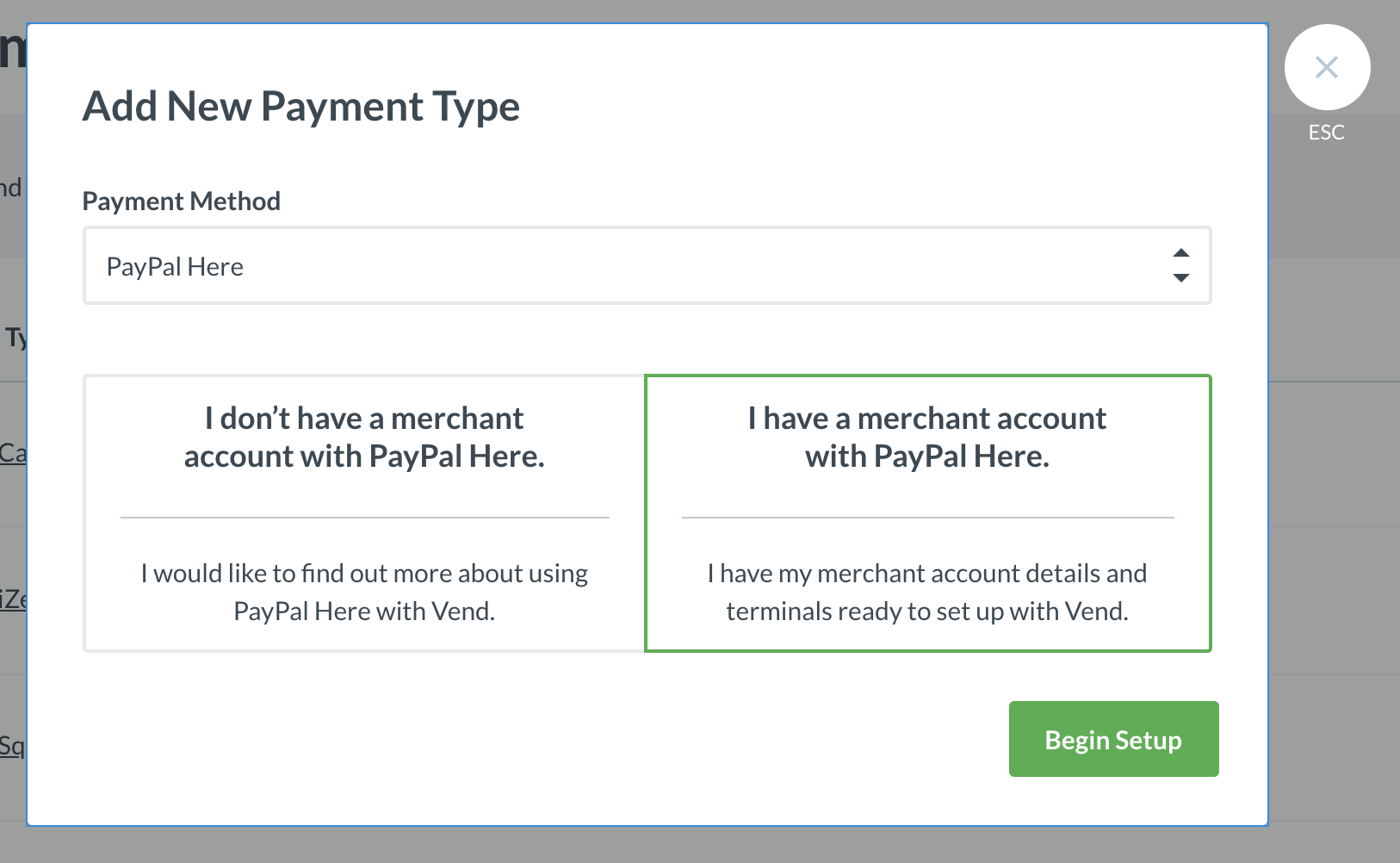
Choose Find out more or Begin Setup to get started.
You may be required to complete this in two steps if you have never signed up for PayPal before.
-
Sign in to your Paypal account. Confirm that you'd like to link Paypal to Retail POS and follow the on-screen instructions to connect your PayPal Here account.
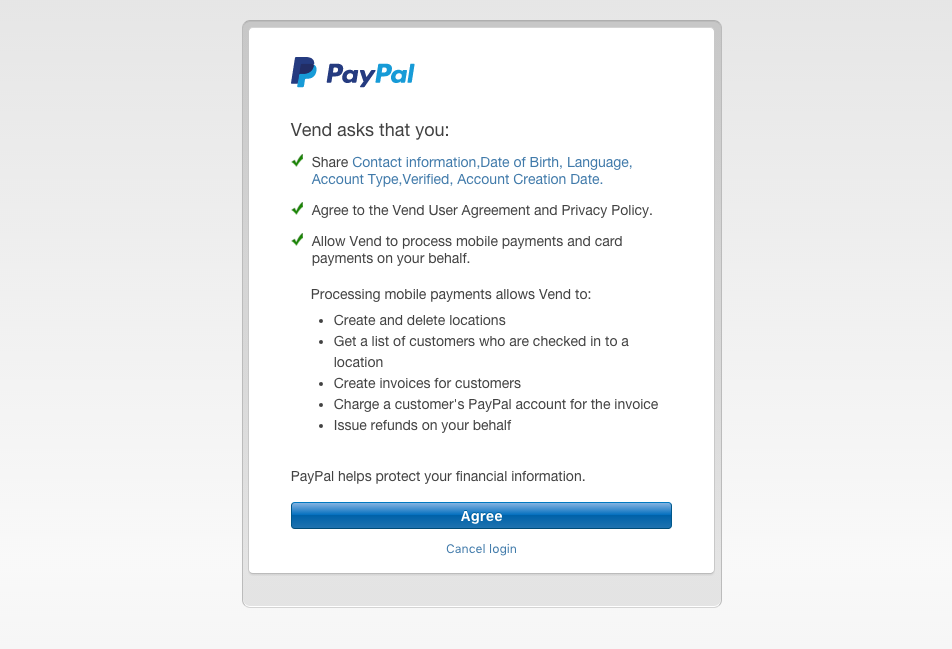
Retail POS will check the status of your account and let you know if everything is approved, or if more information is required.
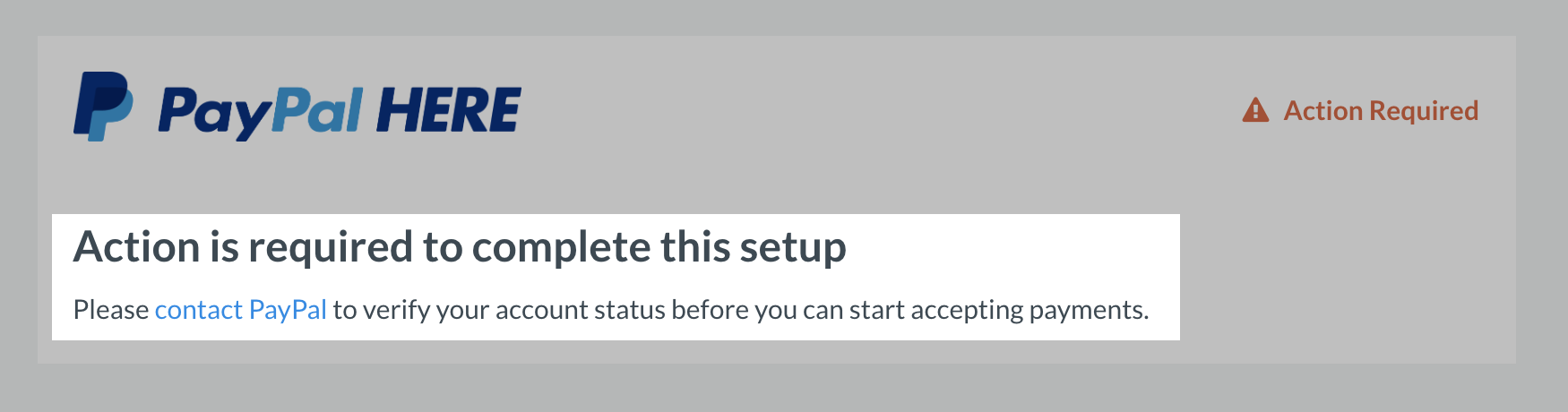
If you see an Action is required to complete this setup message, click contact PayPal to check the status of your approval for PayPal Here.
- Click Save Payment Type to finish.
Once these steps have been completed, your new payment type will be available on your Retail POS iPad app.
Pairing the terminal to your Retail POS account
On the Retail POS Sell screen:
- Add your items to the sale.
- Select Pay.
- Select PayPal.
-
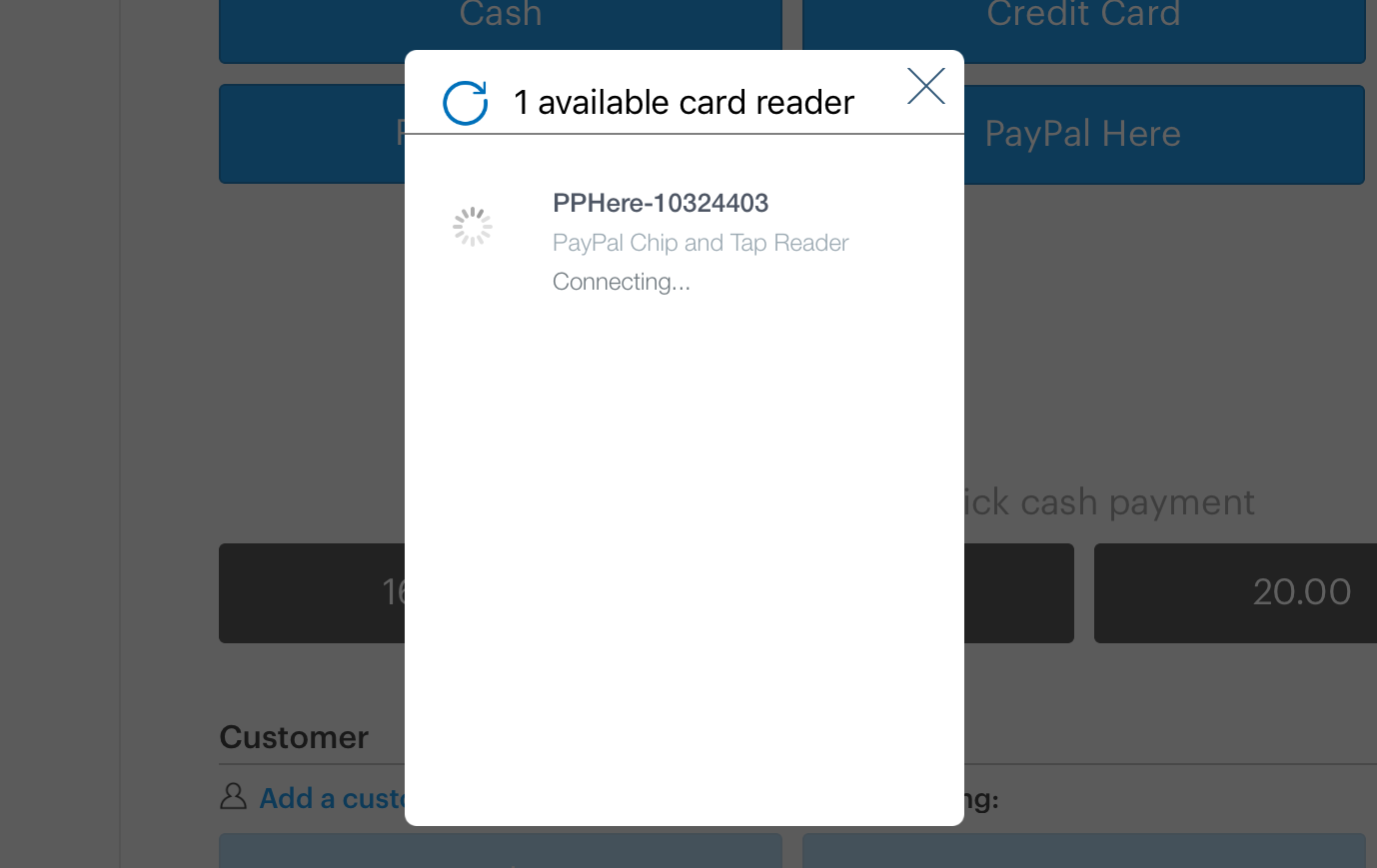
A window will appear prompting you to connect your PayPal reader.
-
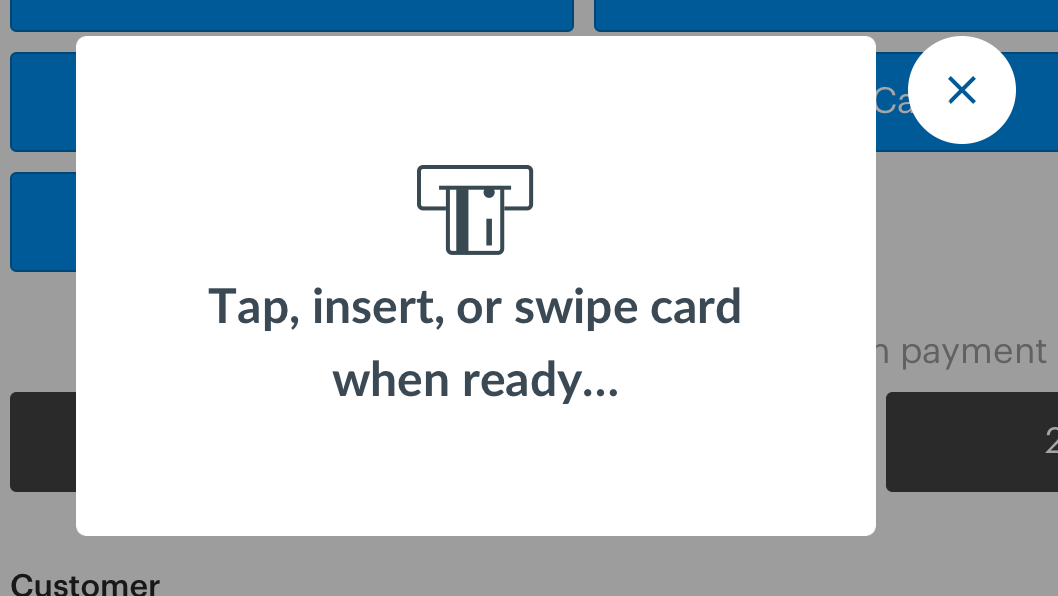
Once the reader is connected, Retail POS will show a window prompting you to take payment from your customer.
- Once a payment terminal is found, the terminal will automatically pair with your register, and the transaction will be sent to the terminal.
- Proceed with taking payment for that first transaction on the terminal by using your own credit card. Once payment is authorized, your Retail POS will automatically display a Payment Received message
- You can now do a second transaction to refund your credit card for the amount charged in the first transaction.
- If you need to cancel the payment, this must be done on the card reader. Alternatively, you can wait for the transaction to time out.